Welcome to Worthberry: your first five steps
You're in. Here's what to do first: link your bank or upload a statement, tidy your transactions, build your dashboard, set your budgets and add your KiwiSaver.
Kia ora, and welcome to the Worthberry private beta. You've made your account. Now let's make it useful. These five steps take about fifteen minutes, and by the end you'll see where your money is, where it's going and how it all adds up.
1. Bring in your bank accounts
Everything else builds on your transactions, so start here. There are two ways in, and you can mix them.
Link your bank (the easy way)
Linking keeps your balances and transactions up to date on their own. It's read-only: Worthberry can see your money, but it can never move it.
- Open Accounts and press Connect, or press Add at the top of any page and choose Link banks & KiwiSaver.
- You'll go to Akahu, an open finance platform for New Zealand. Create your Akahu login, or sign in if you already have one.
- Pick your bank and sign in, on your bank's own screen or through Akahu. Your password never comes to us, and our team never sees your balances.
- Tick the accounts you want to see, then confirm. You'll land back in Worthberry with your accounts synced and your recent history already in.
Got accounts at more than one bank? Add them all in the same go. Linking is included for everyone during the beta.
Or upload a statement
If your bank isn't on Akahu, or you'd rather not link it, a CSV statement works just as well.
- In your internet banking, export your transactions as a CSV file. A computer makes this easiest.
- In Worthberry, open Accounts and press Import CSV, or press Add and choose Import a statement.
- Choose the file, pick which account it belongs to (or create a new one), check the preview and press Import.
Import again whenever you want to catch up. Transactions you've already brought in are recognised and skipped, so nothing doubles up. There's more detail in Import a bank statement.
2. Tidy up your transactions
Your transactions sort themselves into categories, recognising places like Woolworths, Pak'nSave, Z and Mercury. A few will need a nudge, and every fix teaches Worthberry for next time.
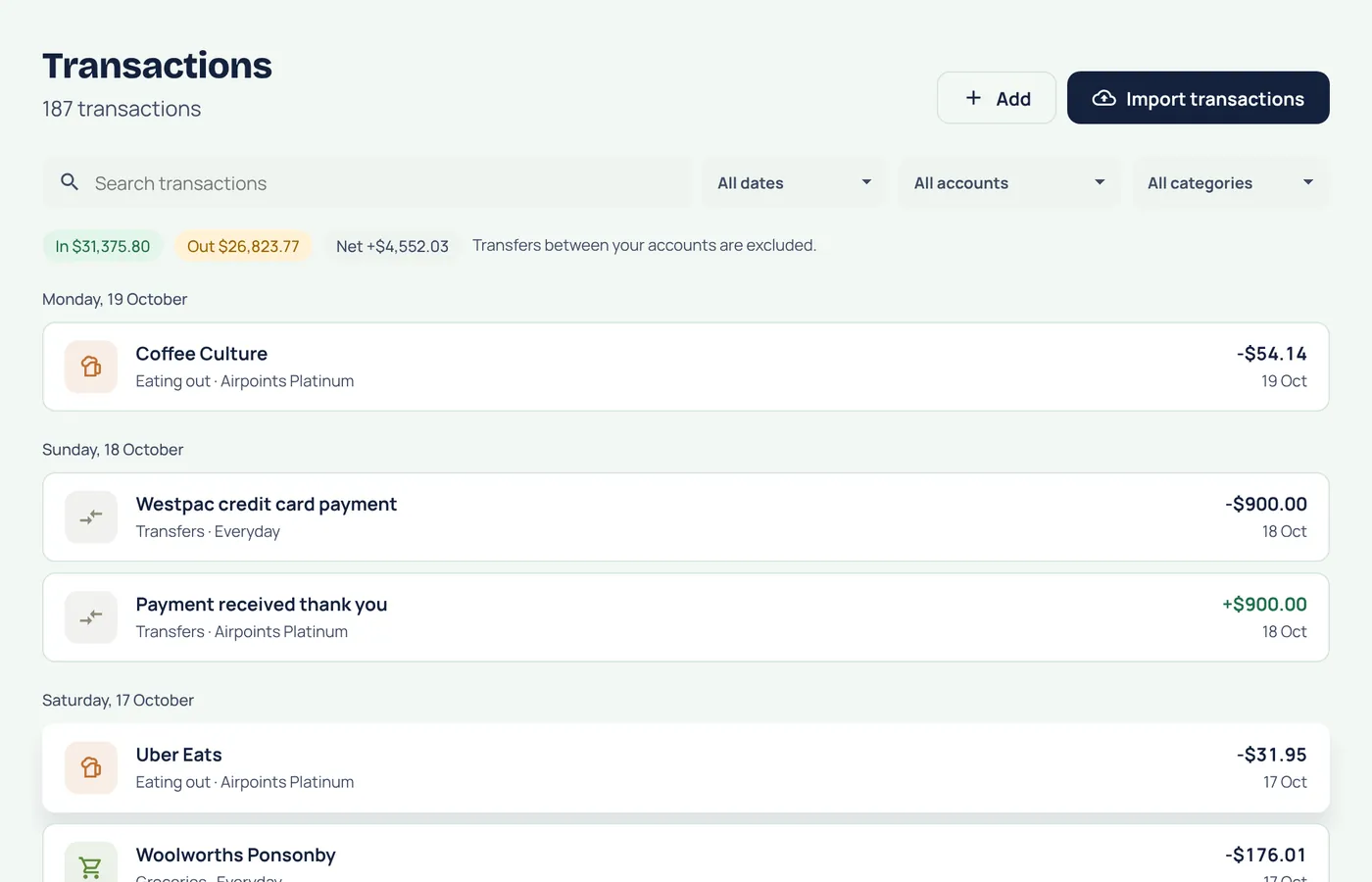
- Open Transactions. Use the search box and the account, date and category filters to find what you're after.
- Press a transaction to open it. You can change its Category, fix the description or date, and add Notes.
- When you change a category, tick Also recategorise similar transactions and remember this. Every past and future transaction from that place lands in the right spot.
- Press Save.
Want a category that's all yours, like "Dog" or "Wedding"? Type a new name in the category picker and it's created on the spot. You can manage them all under Settings → Categories and rules.
3. Build your dashboard
Your dashboard is the first thing you'll see each time you open Worthberry, so make it show what you check most.
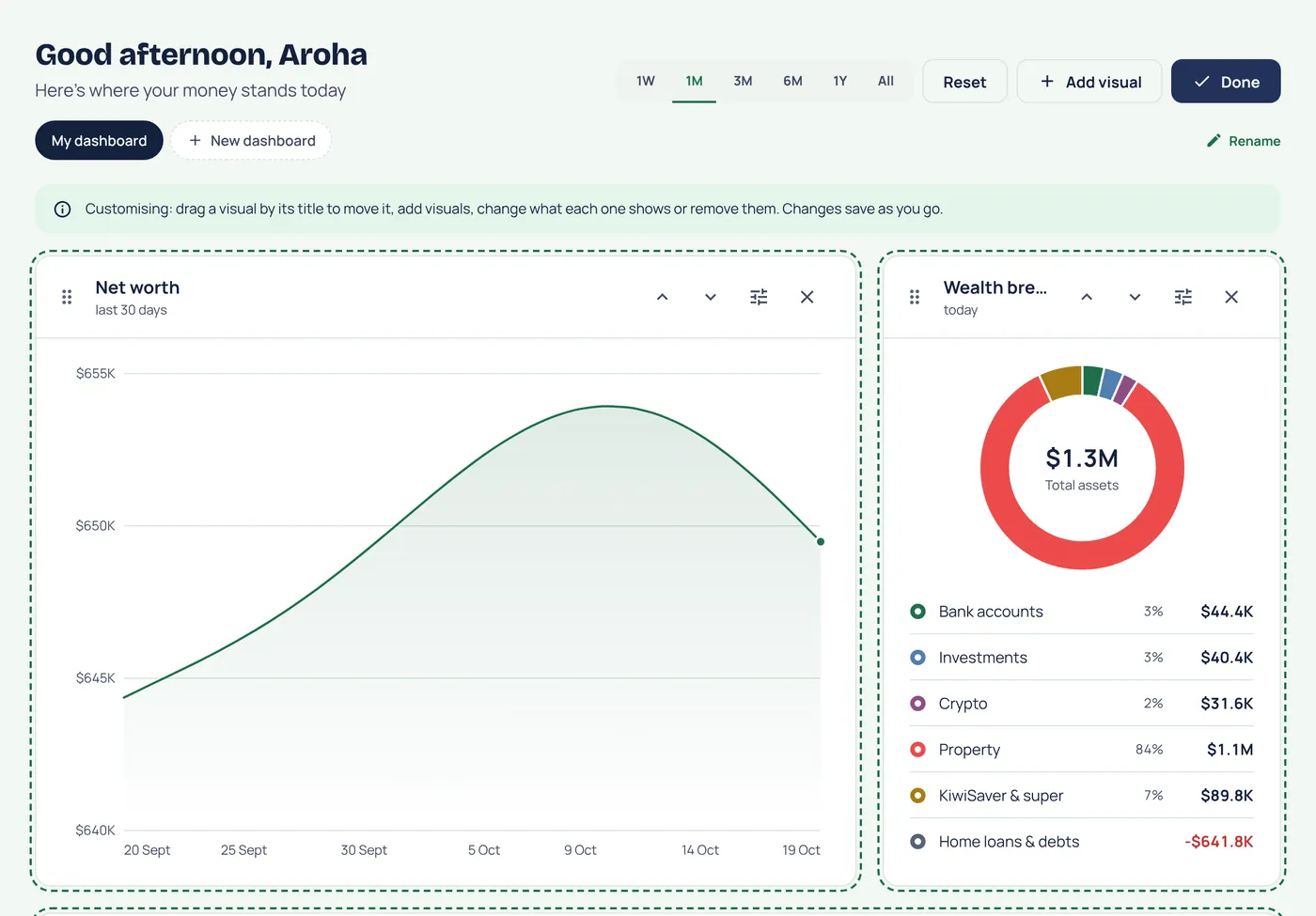
- On Dashboard, press Customise.
- Press Add visual and choose from net worth over time, spending by category, where your money went, budgets, goals and more.
- Drag any visual by its title to move it, open its settings to change what it shows and how big it is, or remove the ones you don't need.
- Press Done. Everything saves as you go.
Want more than one? Press New dashboard and start from a blank page or a template. A "this fortnight" dashboard for budgets and bills, and a "long game" one for net worth, KiwiSaver and goals, is a good pair. More dashboard ideas.
4. Set your budgets
Budgets work best when they follow your pay. If you're paid fortnightly, tell Worthberry when payday is first.
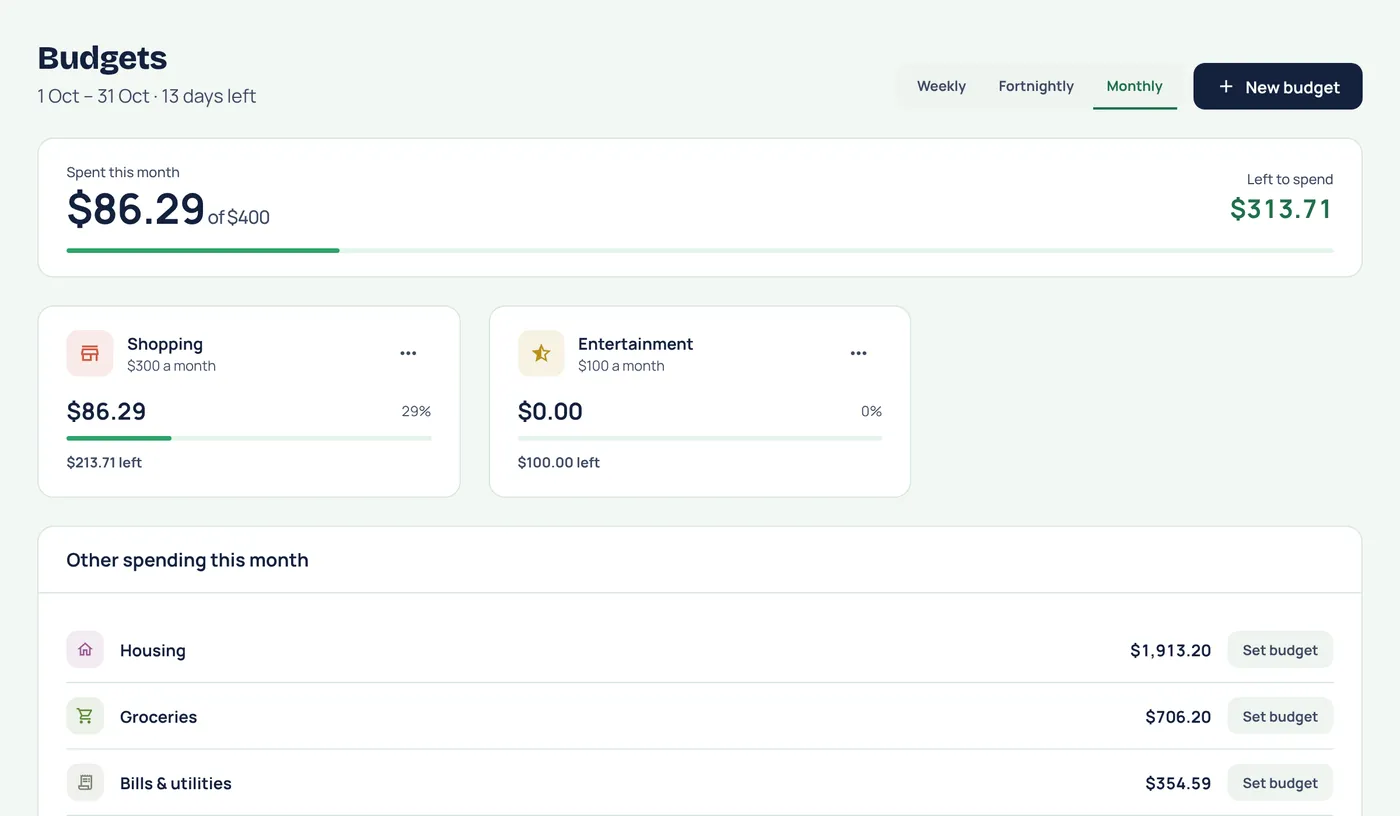
- Open Settings and, under your profile, set A recent payday. Fortnightly budgets then reset on your payday, not on a random date.
- Open Budgets and press New budget.
- Choose a category, set a Limit, and pick how often it resets under Every: a week, a fortnight or a month.
- Press Save. Repeat for the categories you care about. Groceries, eating out and transport are good places to start.
Not sure what to budget? The Other spending list on the Budgets page shows what you've spent in each category without a budget, with a Set budget button right next to it.
5. Add your KiwiSaver
For most of us, KiwiSaver is one of the biggest things we own. Adding it shows your balance, the government contribution you're on track for, and a projection to 65.
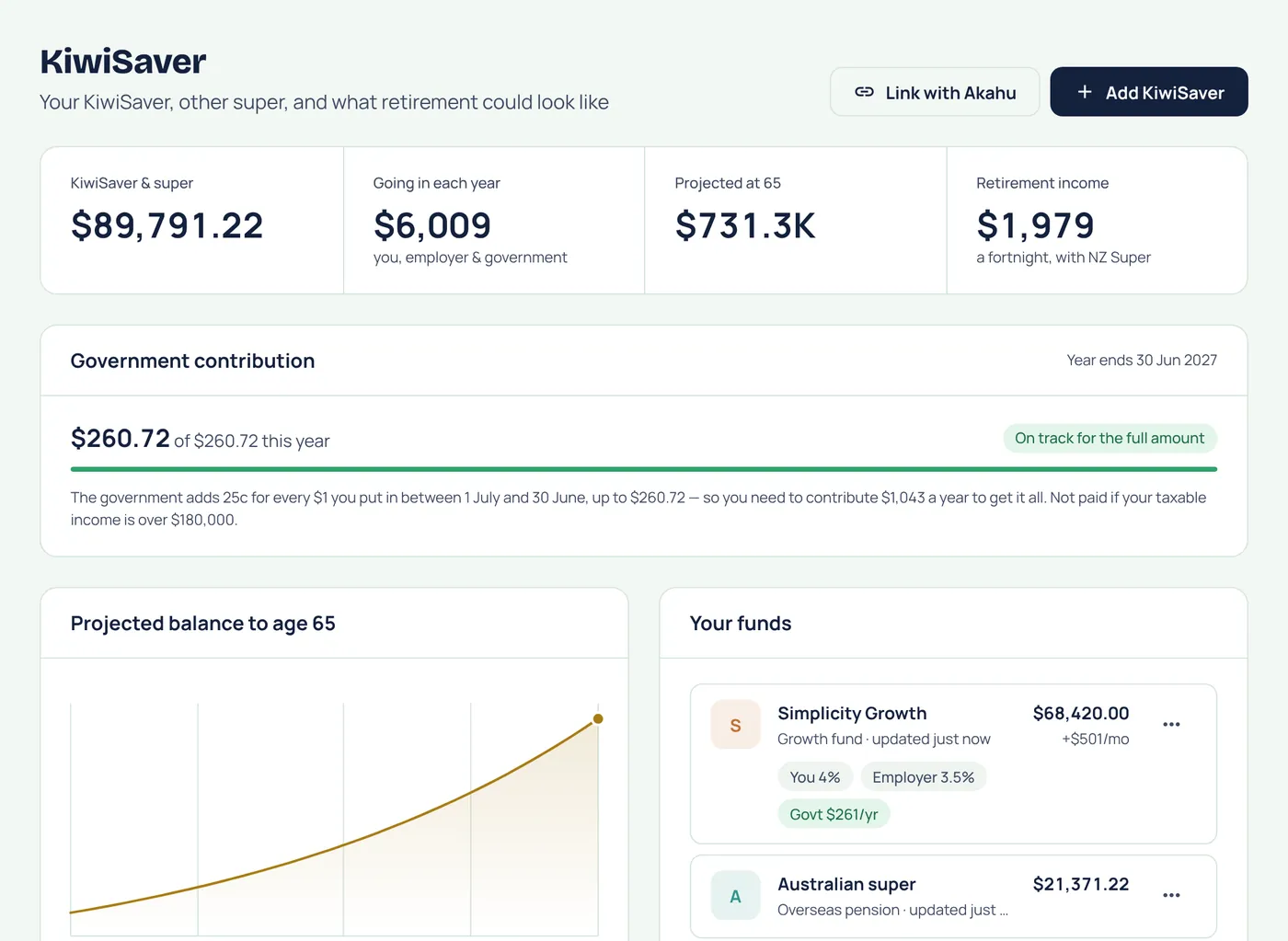
- Linked: if your provider is on Akahu, press Link with Akahu on the KiwiSaver page (or tick your KiwiSaver when you link your bank). Your balance then updates on its own.
- By hand: press Add KiwiSaver, choose your provider and fund, and enter your balance from your provider's app or latest statement. Tick I'm contributing from my pay and add your rates to see your yearly contributions and projection.
Update a manual balance whenever you check your provider. Once a quarter is plenty.
That's it. Now see the whole picture
With your accounts, budgets and KiwiSaver in, your net worth adds itself up: everything you own minus everything you owe, in one number that moves as you do. Add your home, investments or crypto whenever you're ready from the Add button.
You're one of the first people using Worthberry, and what you tell us shapes what we build next. Press the feedback icon at the top of the app any time, or reply to your welcome email. We read every message.
Worthberry tracks your money. It doesn't give financial advice.